How to Migrate Your Website to Astro with Claude Code (Step by Step, Free Hosting)
Let's get in touch
I wanted to stop paying a platform fee and try to use Claude to migrate my website to Astro. One afternoon later, adrianiancu.com runs on Astro, hosted free on Cloudflare Pages, with every old URL still in place.
This guide is the exact process, step by step, with the screenshots from that day. It works for a site on WordPress, Framer, Wix, Webflow or Squarespace. It also works for a first website built from nothing.
Prefer a checklist? Copy the free Website Set-up Trello template and tick through every step. It is also on my Free Resources page.
What you get at the end: a fast website on your own domain with a free padlock (https). Every change you save goes live automatically. Fake emails in your name get rejected, and hosting costs 0 EUR a month.
What you need before you start
To migrate a website to Astro with Claude Code, you need 4 things: a paid Claude plan, a GitHub account, a Cloudflare account and a domain name. Everything else in this guide is free.
| What | Why you need it | Cost |
|---|---|---|
| Claude plan (Pro or higher) | Claude Code does the technical work: building, checking, fixing | Your Claude subscription |
| GitHub account | Stores your website’s code safely, with every version saved | Free |
| Cloudflare account | Hosts the site and manages your domain | Free |
| A domain name | Your address on the internet | About 10 to 15 EUR a year for a .com |
| A computer (Mac, Windows or Linux) | Claude Code runs in a terminal window | You have one |
Time: one afternoon. Most of it is waiting for Claude and for the internet to catch up.
The two kinds of steps
The two kinds of steps in this guide are steps you do yourself and steps Claude does for you. Each step carries one of two labels:
- You do this means logins, payments and clicking in dashboards. Claude stays out of your accounts.
- Claude does this means you paste a prompt into Claude Code and check the result.
That split is deliberate. Claude writes and checks the website. You stay in control of every account, every payment and every setting that faces the public.
Starting from scratch or migrating?
- Migrating an existing site? Go to Plan the move.
- Building your first website? Read the next section first, then continue from Accounts and domain.
Starting from scratch: plan the website before you build it
A website plan comes before any design or code, and it fits on one page. Answer these 5 questions in writing before you open Claude Code:
- What is the site for? One sentence. “Get clients for my SEO consulting” is a purpose. “Have a website” is not.
- Who is it for? Describe one real visitor: their job, their problem, what they search for.
- What is the one action a visitor takes? Book a call, send a message, buy, subscribe. Every page leads to that action.
- Which pages does it need? Start small: Home, About, Services, Contact, plus one page per real question your visitors ask.
- What does it look like? Pick 2 or 3 websites you like and write down why: the colours, the fonts, the spacing, the tone.
Then write the content before the design. Real text makes better design decisions than placeholder text. Design for the phone first, because most visitors arrive on a phone.
When the plan is done, give it to Claude in the build step below instead of an old site.
Plan the move
Step 1: Rescue and list your old content
To rescue your old content, Claude Code makes a complete list of your URLs and saves a copy of every page and image before anything changes.
Claude does this
Why: your old URLs carry whatever Google rankings you have. Keeping every URL exactly the same is the single most important rule of a migration. First, Claude makes a complete list of pages and saves a copy of all text and images.
Your old site is online? Claude reads it directly. Your old site is down or locked? The Wayback Machine usually has saved copies. For my own migration, the archive had all 16 of my pages.
Open a terminal, create an empty folder for the project, start Claude Code inside it and paste:
I want to migrate my website <your-domain.com> to Astro.
1. Find every page of the site: use the sitemap and the live site, or the Wayback Machine (web.archive.org) if the site is down.
2. Save a copy of each page and every image it uses into this folder.
3. Give me a table of all URLs, page titles and meta descriptions.
Do not change or publish anything yet.
What you see when it works: a table with every URL of your site. Compare it with what you remember. Missing a page? Tell Claude which one.
Getting content out of each platform: WordPress has an export under Tools, Export. Wix, Webflow, Framer and Squarespace sites are readable from the live pages, which is what Claude uses here. These are general notes. My own migration used the archive route.
Accounts and domain
Step 2: Buy a domain (skip if you have one)
To buy a domain, pick any registrar and register a name you plan to keep for years. Skip this step if you already own one.
You do this
Why: the domain is your permanent address. You own it separately from any platform, so you keep it when you change hosting.
Buy it from any registrar. Cloudflare Registrar sells domains at cost and keeps everything in one account. Already own a domain somewhere else? Keep it there. Later in this guide, you only change one setting at your registrar.
Step 3: Create a GitHub account
To create a GitHub account, sign up for free at github.com/signup and turn on two-factor authentication.
You do this
Why: GitHub stores your website’s code and remembers every version, so nothing is ever lost. Cloudflare reads your site from GitHub and publishes it automatically.
- Sign up at github.com/signup.
- Turn on two-factor authentication when GitHub offers it.
- Install the GitHub command line tool and log in once. Claude uses it to save your code.
Step 4: Create a Cloudflare account and secure the login
To create a Cloudflare account, sign up for free at dash.cloudflare.com/sign-up, then make sure the login has two-factor protection.
You do this
Why: Cloudflare hosts the site for free and manages your domain’s settings. Whoever controls this account controls your website, so the login needs strong protection.
- Sign up at dash.cloudflare.com/sign-up. Signing in with Google works.
- Signed in with Google? Then your Cloudflare account is exactly as safe as your Google account. Check that 2-Step Verification is on at myaccount.google.com/security.
- Signed up with an email and password? Turn on two-factor authentication in your Cloudflare profile.
Step 5: Install Claude Code
To install Claude Code, run the one-line installer from the official quickstart in your terminal and sign in with your Claude account.
You do this
Why: Claude Code is the assistant that builds and checks the site. It runs in your terminal and works on the files in your project folder.
Follow the official quickstart. On a Mac, the install is one line in the Terminal app:
curl -fsSL https://claude.ai/install.sh | bashOpen a new terminal window, type claude and sign in with your Claude account. New to the terminal? The quickstart links to a short terminal guide.
Build the Astro site
Step 6: Build the site with the same URLs
To build the Astro site with the same URLs, give Claude Code the saved content and one prompt that lists the rules: same URLs, same text, images inside the project.
Claude does this
Why: Astro turns your pages into plain, finished HTML files. Plain HTML loads fast, is easy for Google and AI search engines to read, and costs nothing to host.
Paste into Claude Code, in the same folder:
Build the site as an Astro project, using the content you saved.
- Keep every URL exactly as it was, including whether it ends with a slash.
- Keep the text exactly as it was. List anything you changed and why.
- Keep the page titles and meta descriptions.
- Save all images inside the project. Nothing loads from the old platform.
- Add a sitemap, a robots.txt and a real 404 "page not found" page.
- Add a .node-version file with the value 24, so Cloudflare builds with a current Node version.
- Make every page work on a phone, with no sideways scrolling.
When it builds without errors, show me screenshots of the home page on desktop and on a phone.
Building a new site instead? Replace the first two lines with your plan from the “Starting from scratch” section.
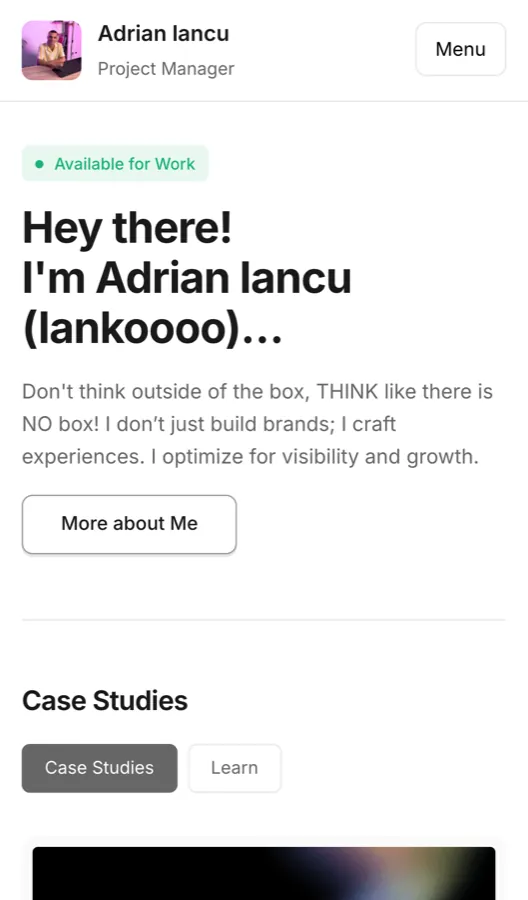
What you see when it works: screenshots of your site on desktop and on a phone. Here is how mine looked at this stage:
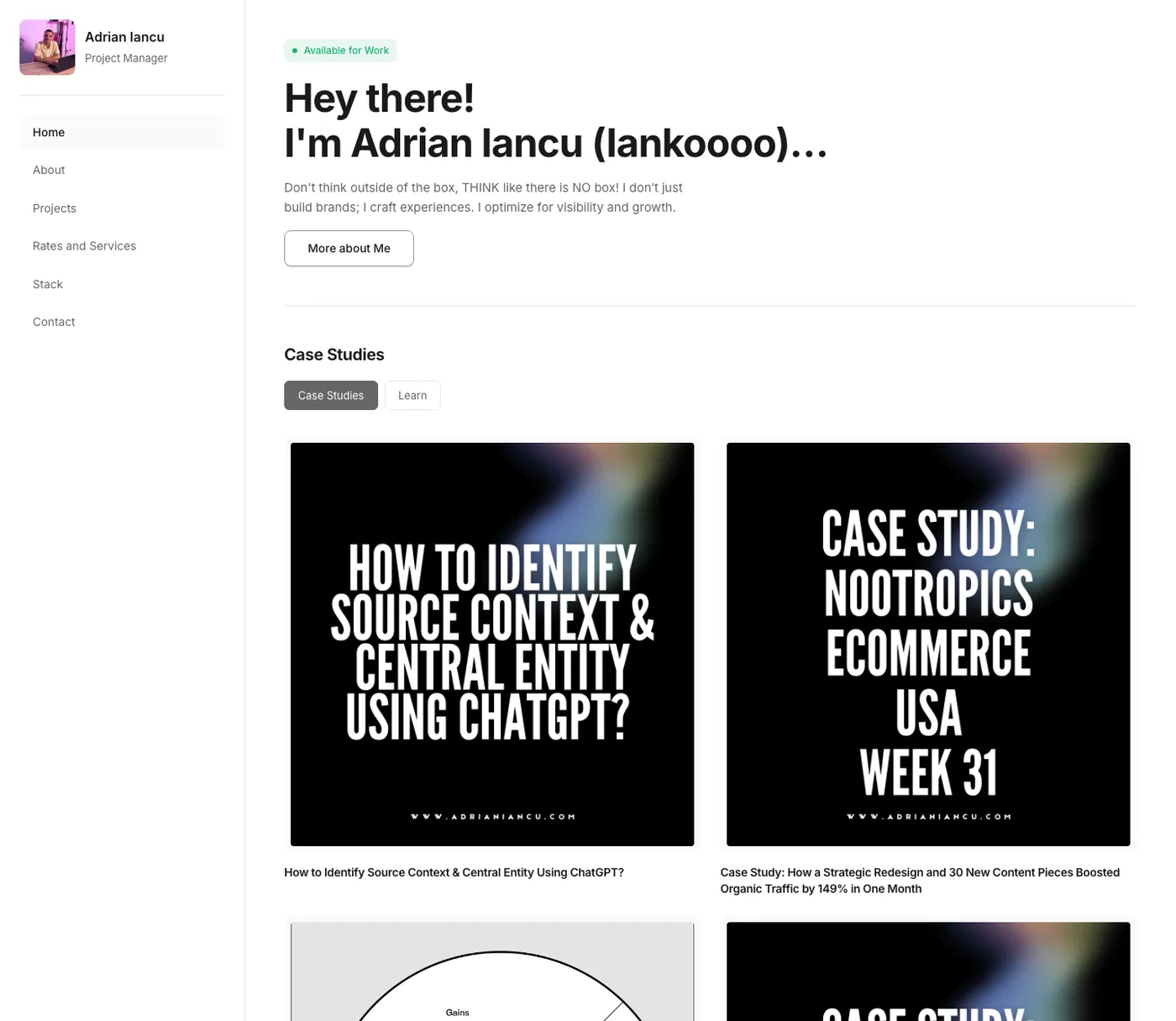
Lesson from my run: the old content had code snippets pasted from ChatGPT with "htmlCopyEdit" stuck in the text. One of them would have run as real code inside the page. Ask Claude to show any code snippets it finds in your content, and check them.
Step 7: Double check everything
To double check the migrated site, Claude Code compares every old page with the new one word for word and tests every page in a real browser.
Claude does this
Why: screenshots only show a page at the moment it loads. My screenshots looked perfect. This check still found 3 real bugs: tabs that showed two lists at once, missing buttons on 5 articles, and a wrong “related articles” list.
Double check the whole site before we publish:
1. Compare the text of every old page with the new page, word for word. List anything missing.
2. Open every page in a real browser at phone size and desktop size. Report sideways scrolling, broken images, script errors and pages without exactly one main heading.
3. Check that every internal link and image works.
4. Click every button, tab and menu, and test every form with empty, wrong and correct input.
Fix what you find, then run all checks again and show me the numbers.
What you see when it works: a short report with numbers, like “32 page loads, 0 problems” and “429 links checked, 0 broken”. Numbers beat “looks good”.
Step 8: Save the code to a private GitHub repository
To save the code to a private GitHub repository, Claude Code creates the repository and pushes the files, or gives you the one command to run yourself.
You do this + Claude does this
Why: a repository is a folder on GitHub that keeps every version of your code. Cloudflare publishes your site from it, and every change you save there goes live automatically.
Save this project to a new private GitHub repository called <your-site-name>, then push the code.
If you are not allowed to create the repository yourself, give me the exact command to run.
Lesson from my run: Claude Code was not allowed to create the repository for me, which is a sensible safety rule. It gave me the command instead, and I ran it myself by typing it after an exclamation mark in Claude Code, like ! gh repo create. Long commands broke when they were pasted across two lines, so keep each command on one line.
Host it free on Cloudflare Pages
Step 9: Connect Cloudflare Pages to GitHub
To connect Cloudflare Pages to GitHub, import your repository in Cloudflare and fill in 3 build settings: Astro, npm run build and dist.
You do this
Why: Cloudflare Pages takes the code from GitHub, builds the site and serves it from a fast global network, for free.
- In Cloudflare, open Workers & Pages, Create, Pages.
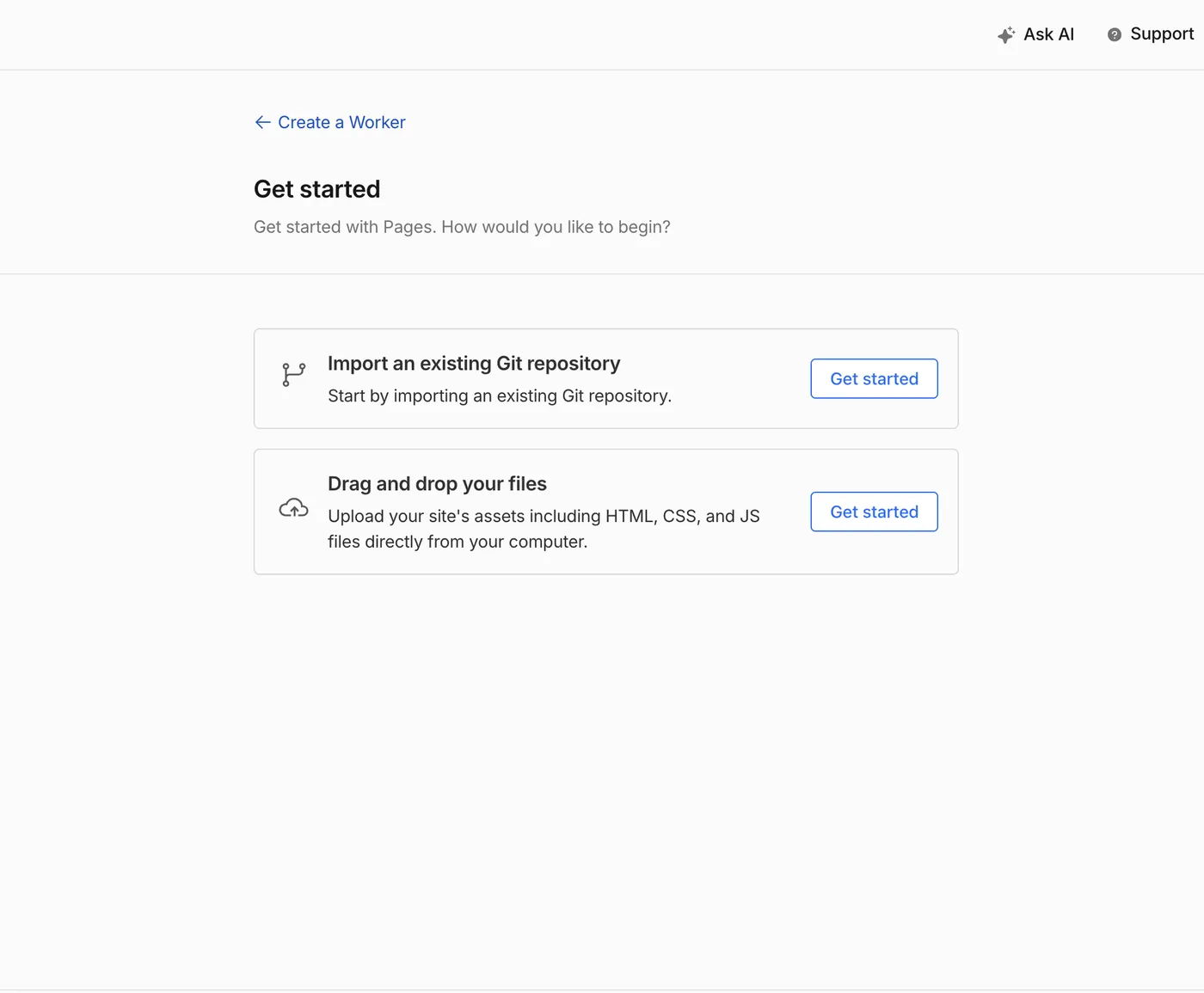
- Choose Import an existing Git repository.
- Connect GitHub. When GitHub asks which repositories Cloudflare gets access to, choose Only select repositories and pick just this one.
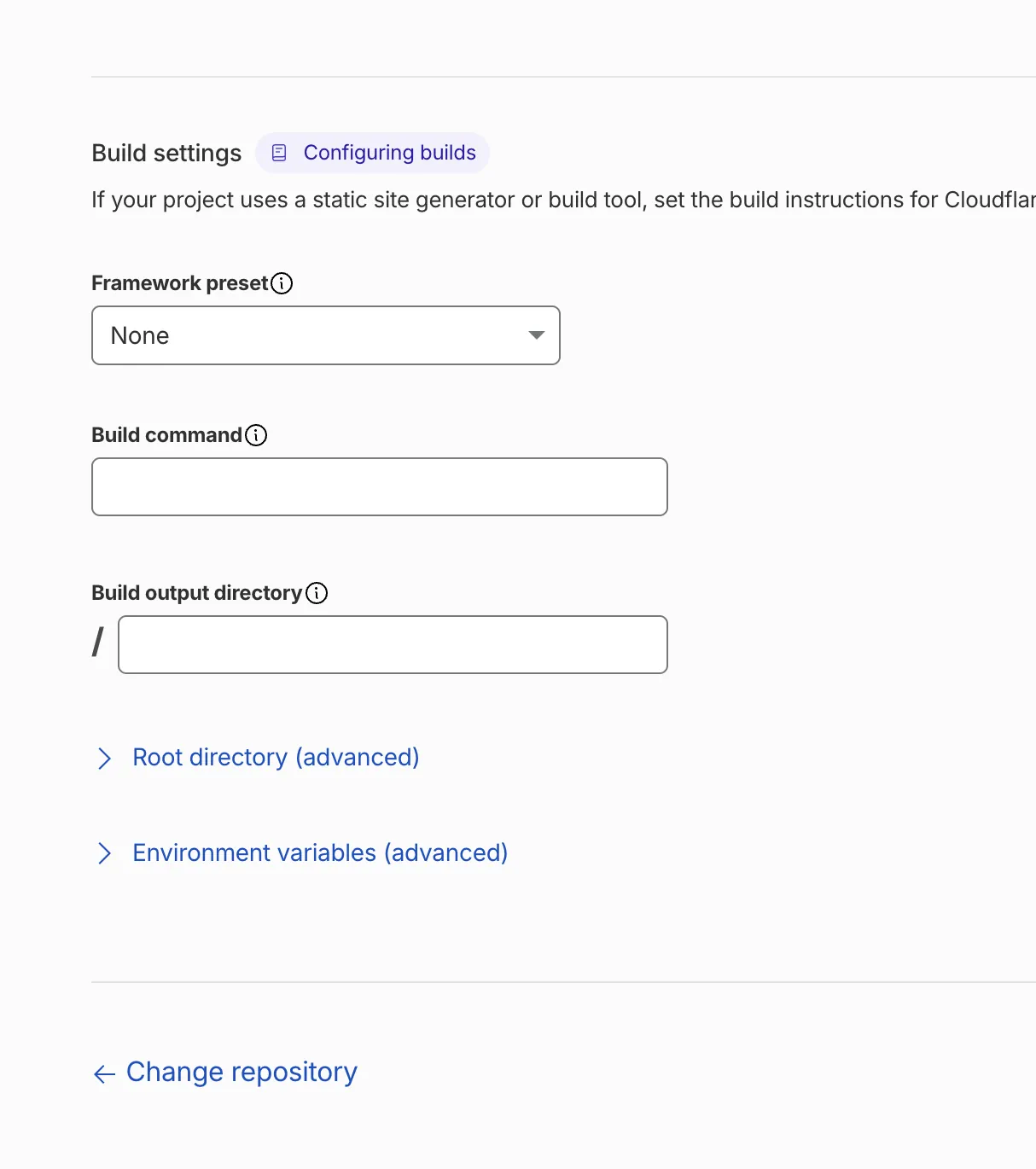
- Fill in the build settings: Framework preset Astro, Build command
npm run build, Build output directorydist.
- Click Save and Deploy and wait 1 or 2 minutes.
What you see when it works: a free test address ending in .pages.dev. Your whole site works there before your real domain is touched. Ask Claude to test every page on that address.
Lessons from my run: Cloudflare builds with an older Node version by default, below what current Astro needs. The .node-version file from Step 6 fixes that. And without a real 404 page, every mistyped address showed the home page with a "page found" status, which Google treats as a soft 404. Step 6 covers both.
Point your domain to the new site
Step 10: Add your domain to Cloudflare
To add your domain to Cloudflare, choose Connect a domain on the free plan and copy the two nameservers Cloudflare gives you.
You do this
Why: Cloudflare only connects your main address (yourdomain.com, without www) to Pages when it manages the domain’s settings. Your domain stays registered where it is. Only the “post office” that tells browsers where your site lives changes.
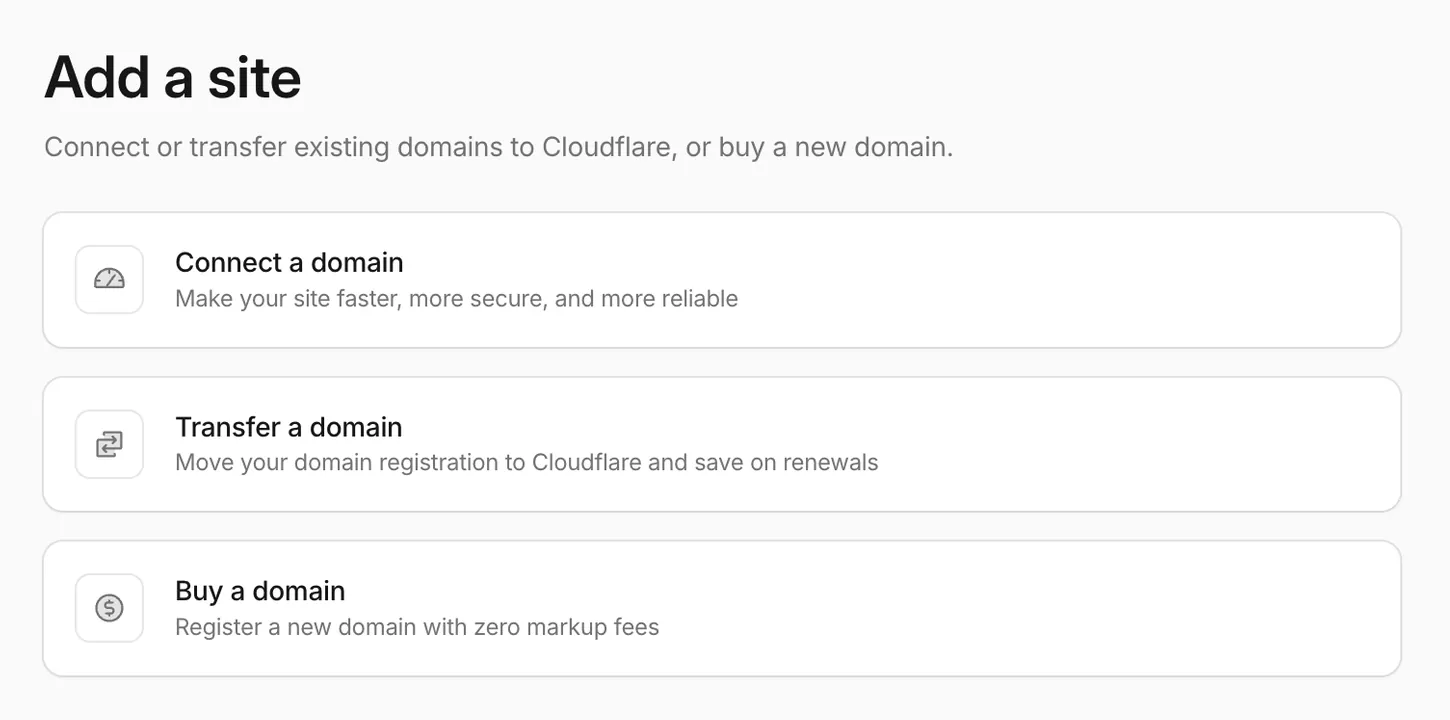
- Open Add a site and choose Connect a domain. Do not choose Transfer, which moves the registration itself.
- Type your domain. In the AI section, keep Search, Agent and Training on Allow so search engines and AI assistants find your content. Turn Bot Preference Sync off, so your own robots.txt stays in control.
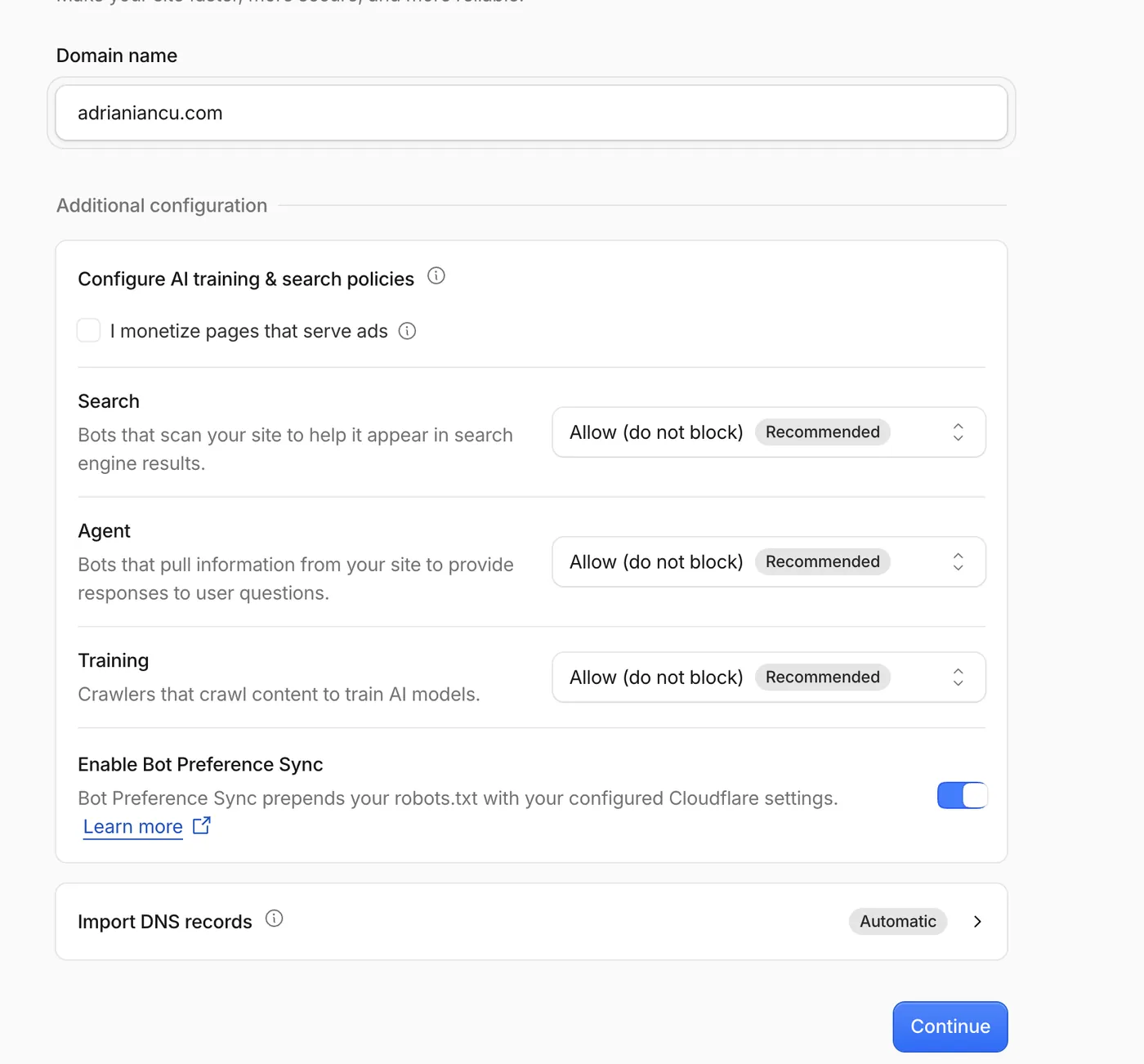
- Pick the Free plan.
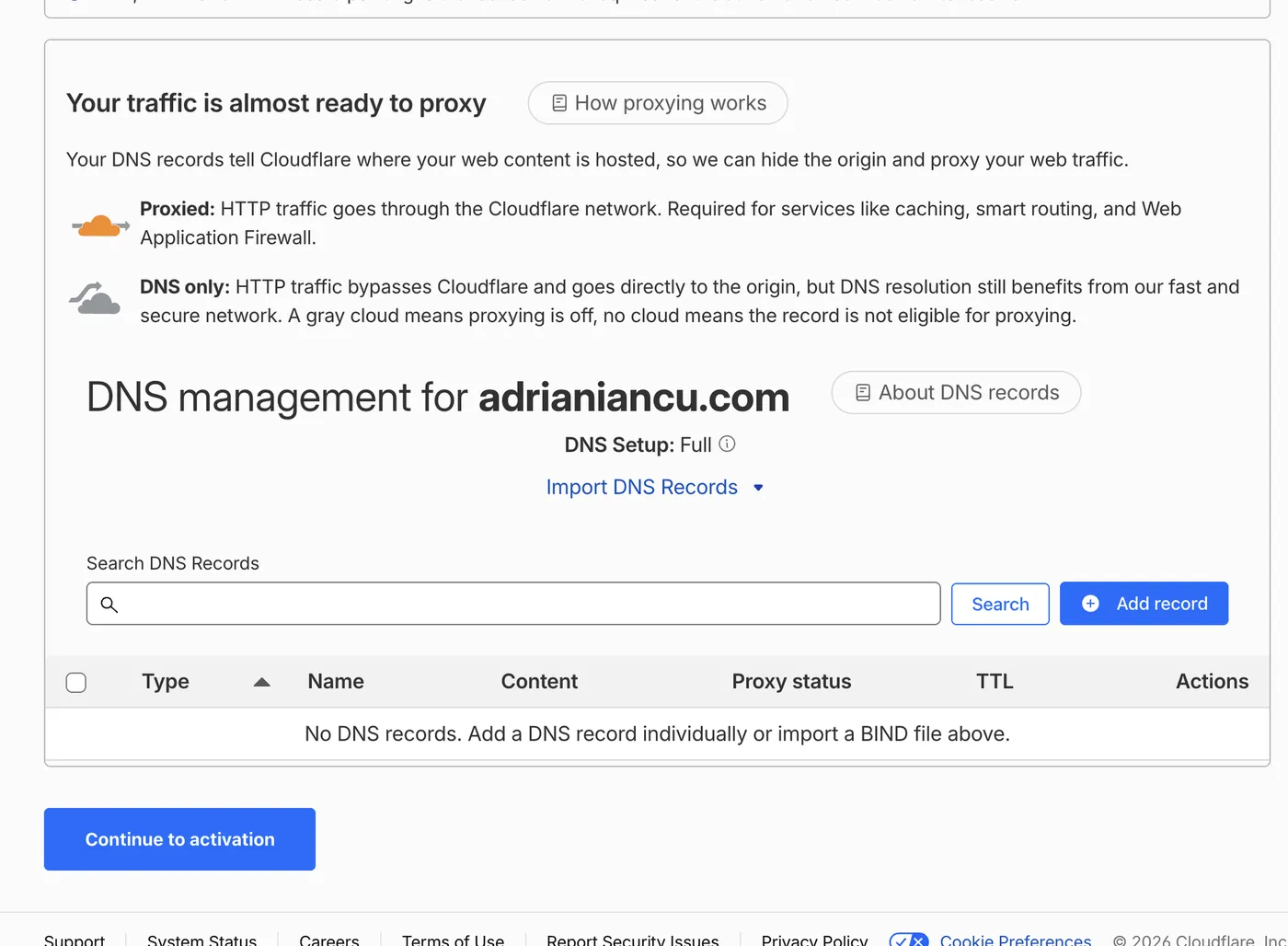
- Cloudflare scans your existing DNS records. Zero records found means nothing else uses the domain, so nothing breaks. Email or other services on the domain? Check that Cloudflare copied those records before you continue.
- Scroll to the bottom and click Continue to activation.
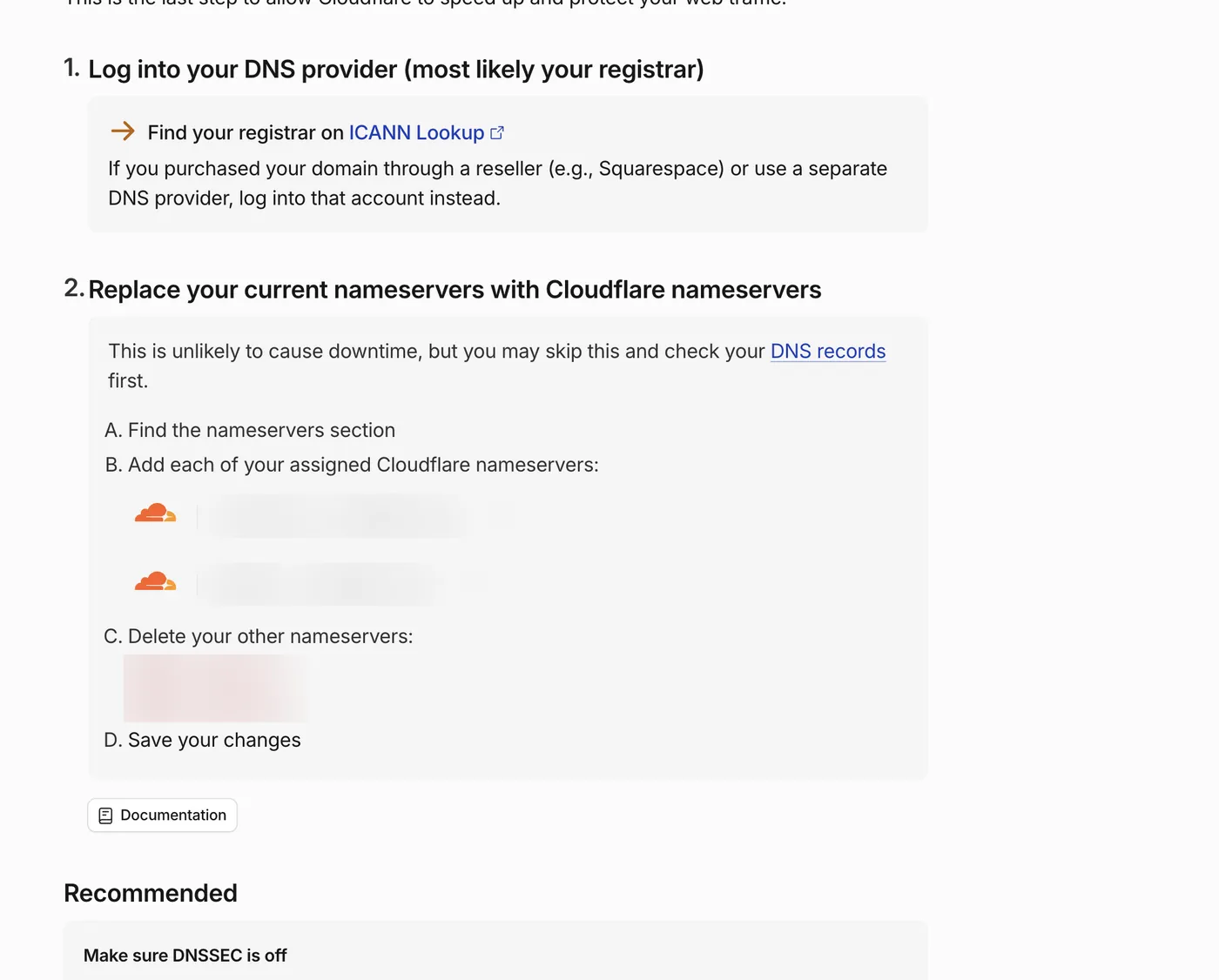
What you see when it works: two Cloudflare nameservers, each ending in ns.cloudflare.com. Every account gets its own pair.
Step 11: Change the nameservers at your registrar
To change the nameservers, replace your registrar’s two nameservers with the two Cloudflare names and save.
You do this
Why: this one setting moves the management of your domain to Cloudflare. To undo it, put the old nameservers back.
- Log in where you bought the domain and open the domain’s Nameservers setting.
- Choose custom nameservers and paste the two Cloudflare names. Leave any extra fields empty.
- Save.
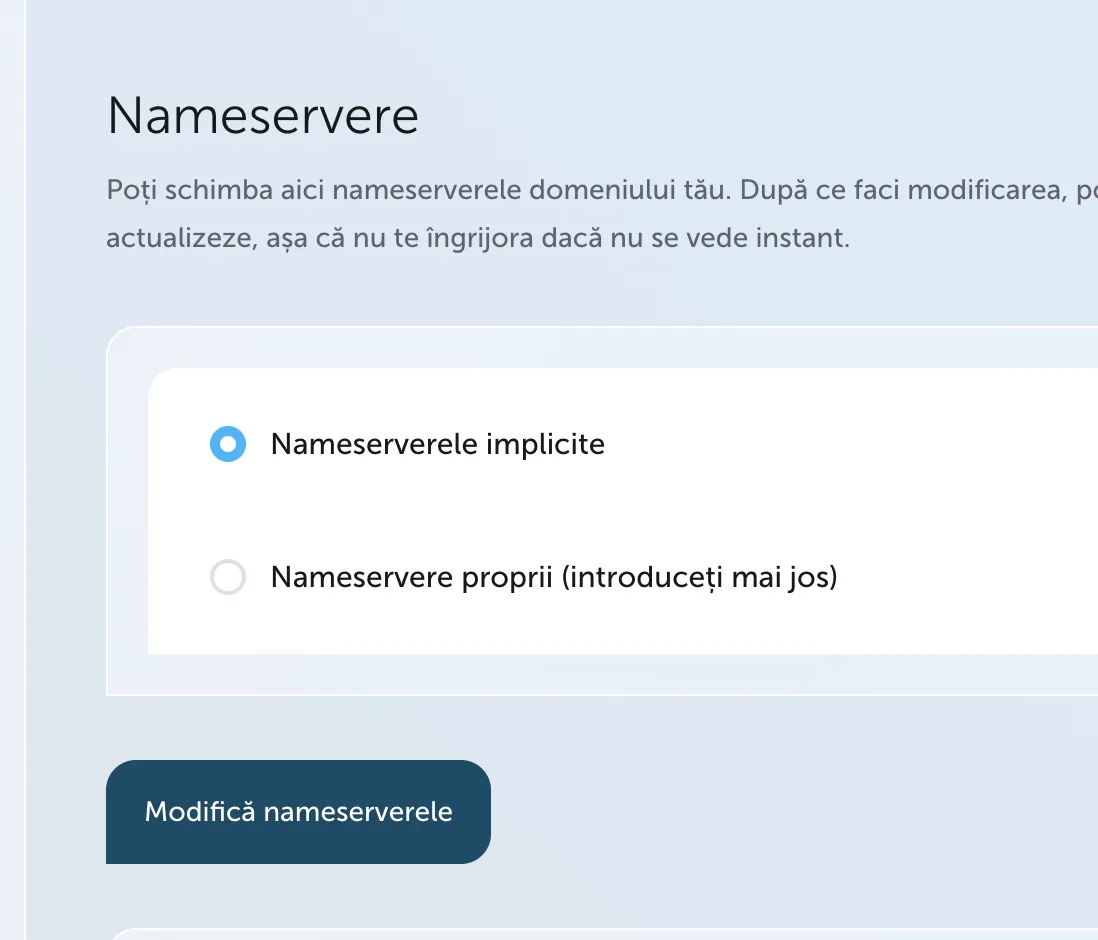
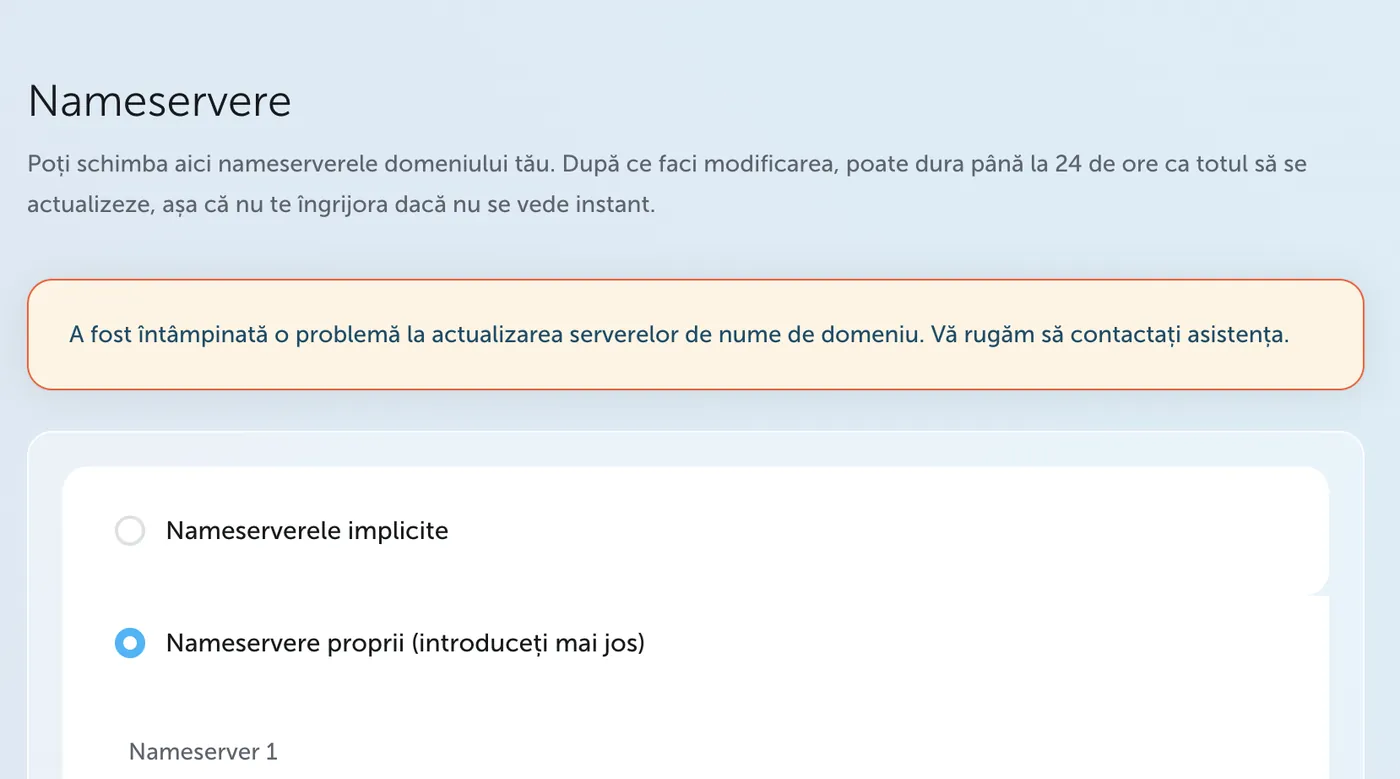
Lesson from my run: my registrar's panel showed an error ("there was a problem updating the nameservers, contact support"). The change had worked anyway. Before you retry or open a ticket, ask Claude to check the nameservers at the source with a whois lookup. Mine already showed the Cloudflare names.
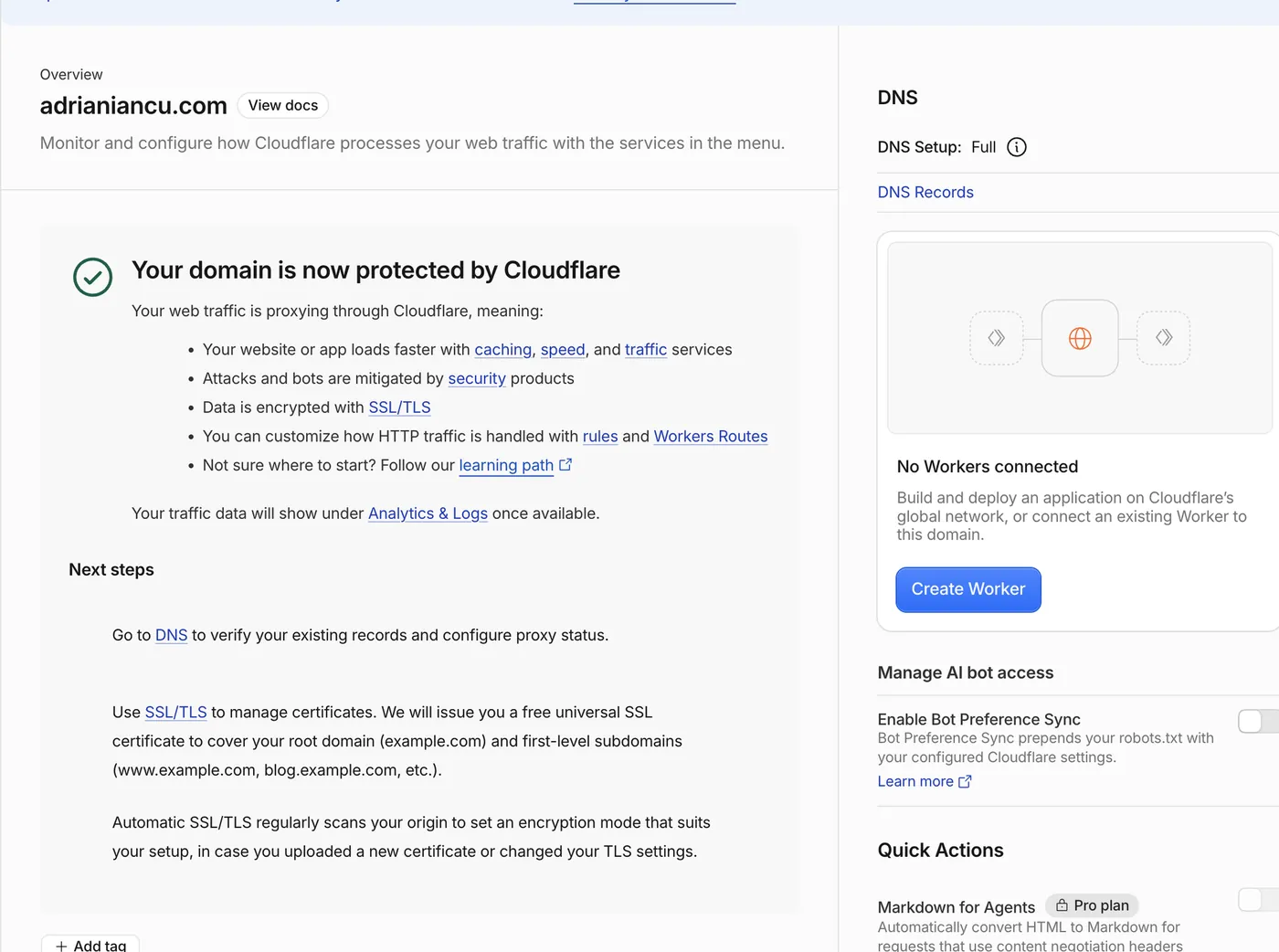
Then wait for Cloudflare to mark the domain Active. Mine took minutes. It can take up to 24 hours.
Step 12: Connect the domain to your site
To connect the domain to your Cloudflare Pages site, add it under Custom domains, once without www and once with www.
You do this
- Open Workers & Pages, click your project, then the Custom domains tab.
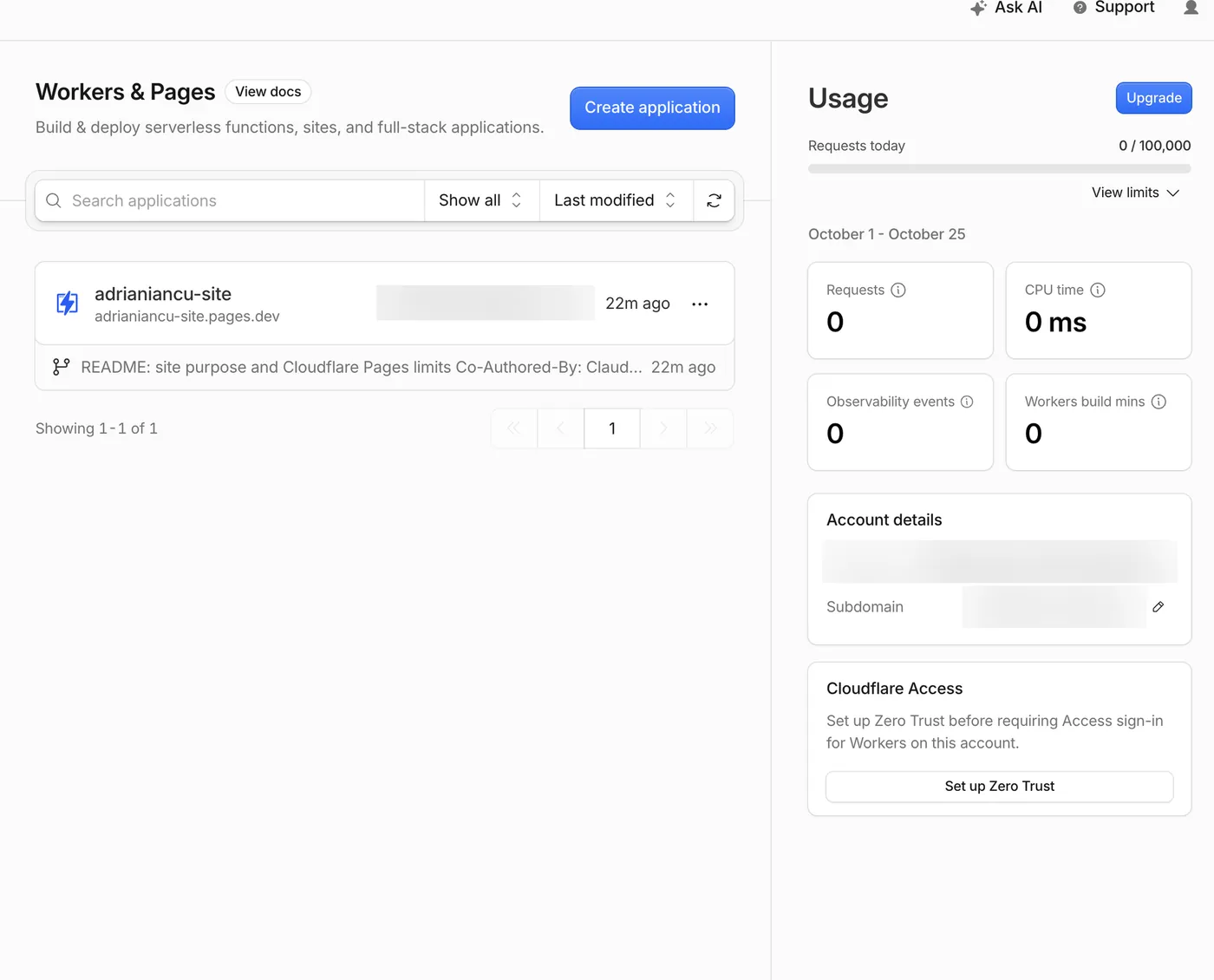
- Click Set up a custom domain, type your domain without www, then Activate domain. Cloudflare creates the record for you.
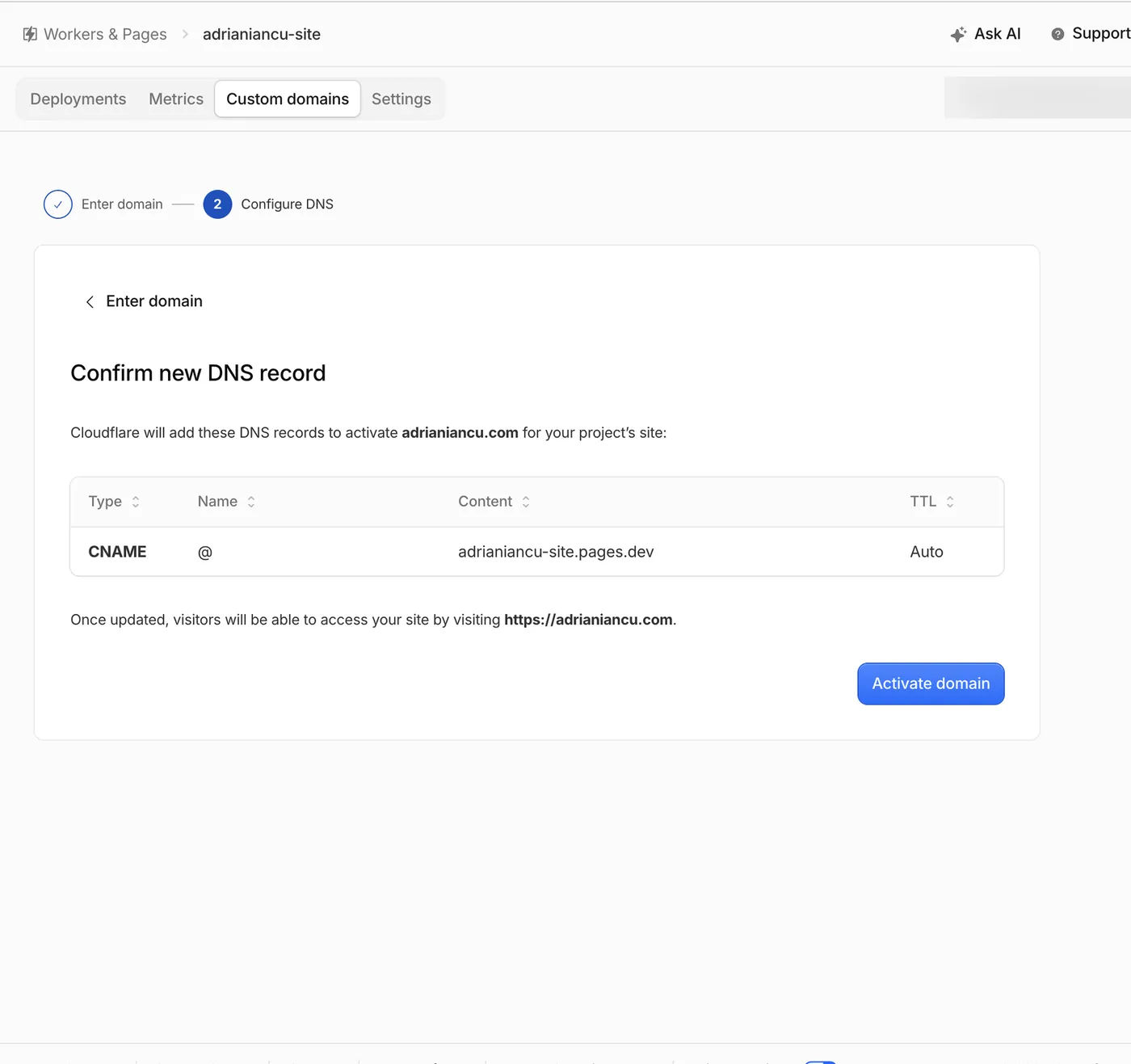
- Repeat with the www version of your domain.
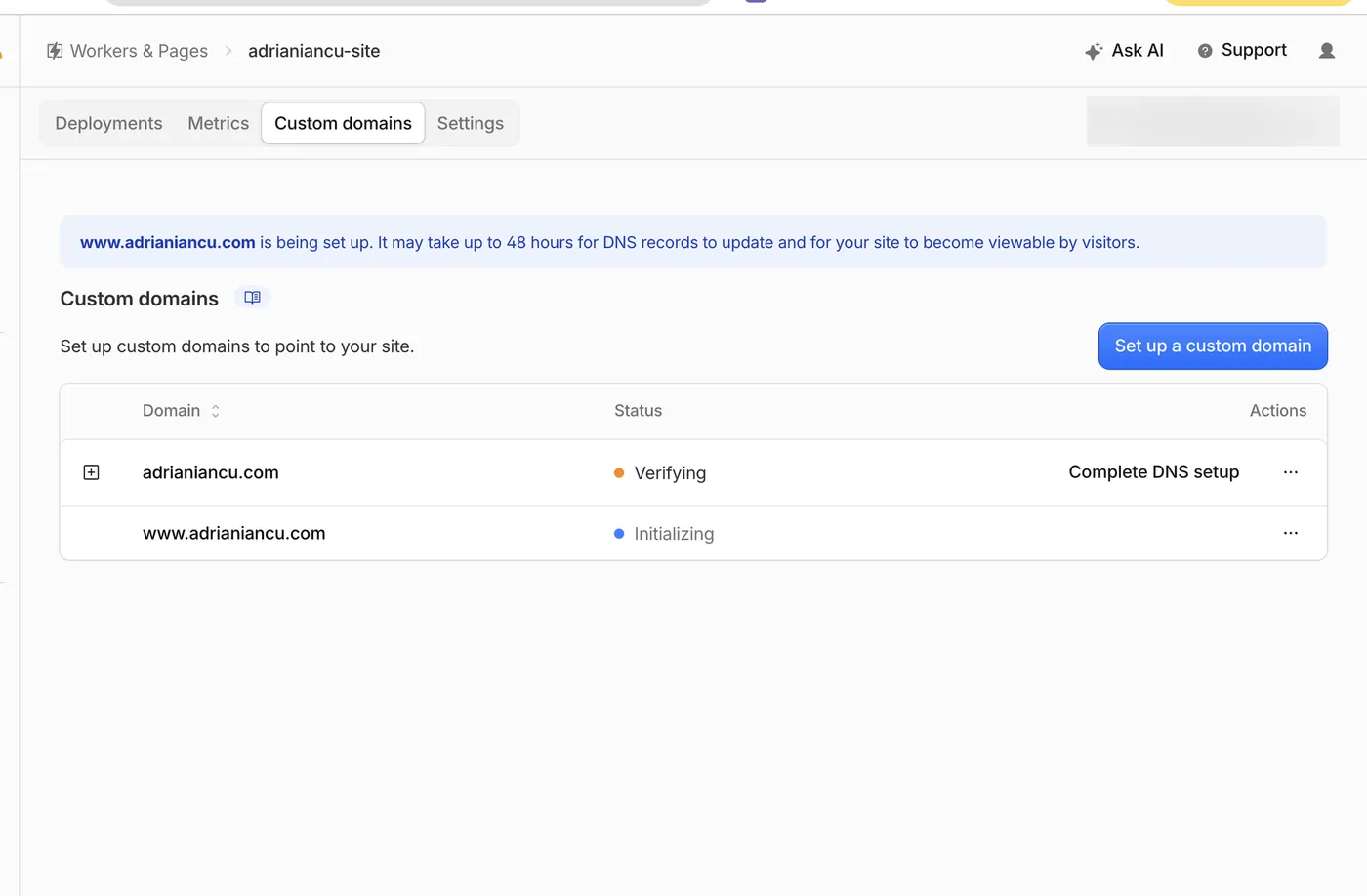
What you see when it works: after a few minutes, your domain opens your new site with a padlock. Cloudflare issues the certificate and renews it on its own.
Step 13: Send www to your main address
To send www to your main address, add Cloudflare’s ready-made “Redirect from WWW to root” rule with a 301 status.
You do this
Why: with both addresses showing the full site, Google sees two copies. A permanent (301) redirect tells Google that one address is the real one.
- In your domain, open Rules and create a redirect rule from the template Redirect from WWW to root. It works without changes: from
https://www.*tohttps://${1}, status 301.
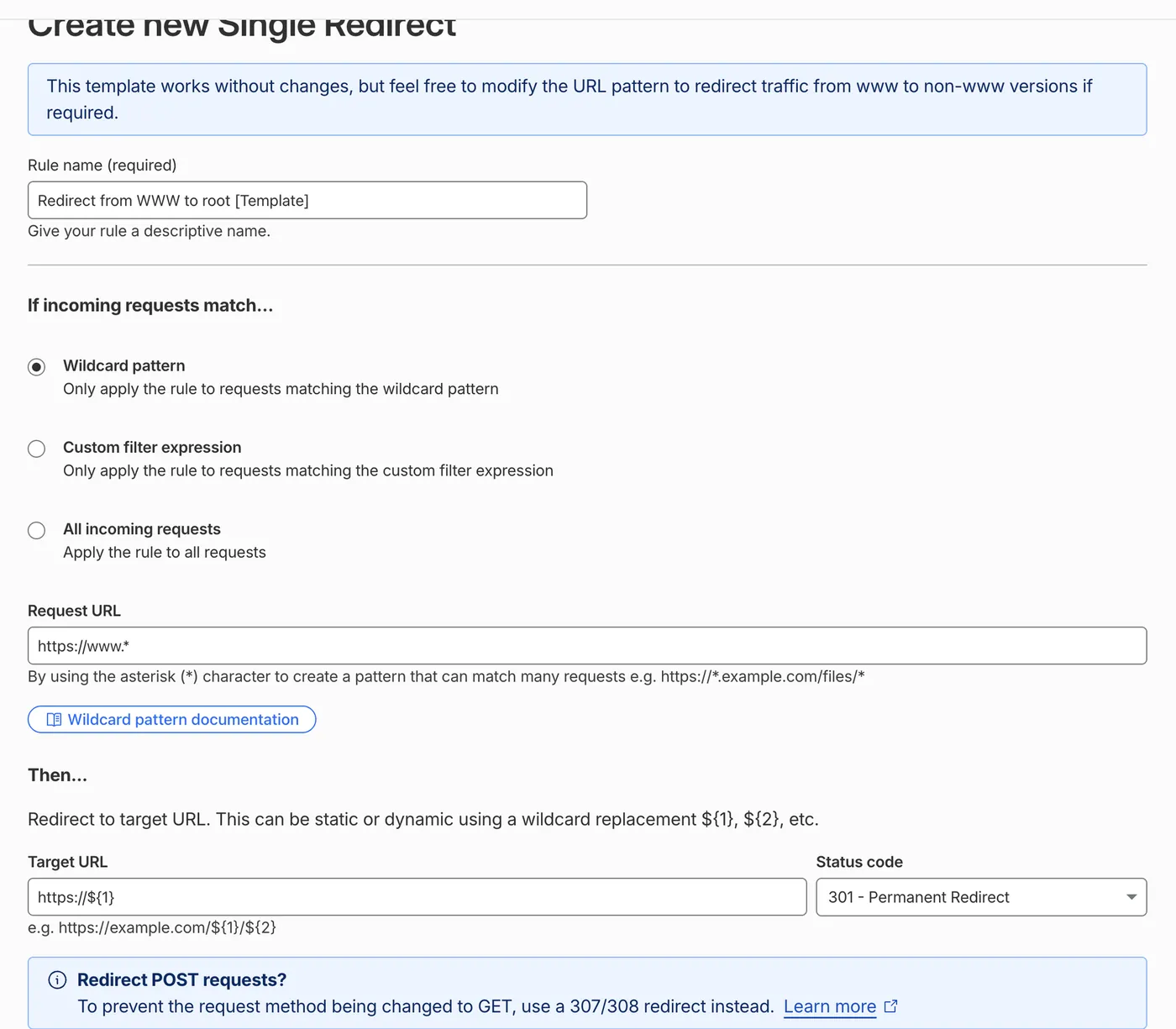
- Tick Preserve query string and click Deploy.
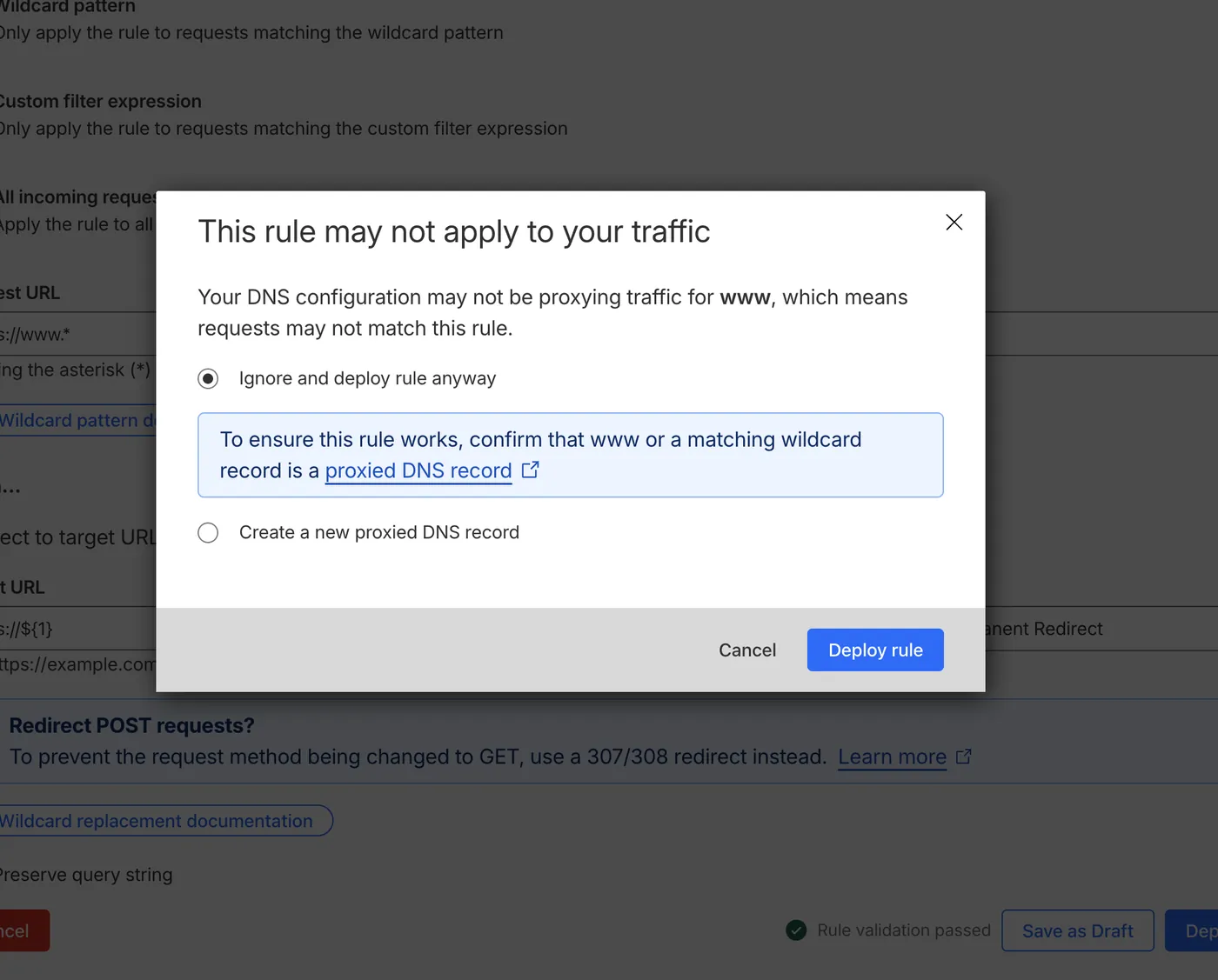
- Cloudflare sometimes warns that www is not proxied. Pages already proxies it, so choose Ignore and deploy rule anyway. Do not create a new DNS record there.
Step 14: Stop people sending fake emails from your domain
To stop fake emails from your domain, add two TXT records: an SPF record and a DMARC record.
You do this
Why: a domain without email records lets anyone send messages that look like they come from you. Two text records tell every mail server to reject those fakes.
In your domain’s DNS, Records, click Add record twice:
| Type | Name | Content |
|---|---|---|
| TXT | @ |
v=spf1 -all |
| TXT | _dmarc |
v=DMARC1; p=reject; sp=reject; adkim=s; aspf=s |
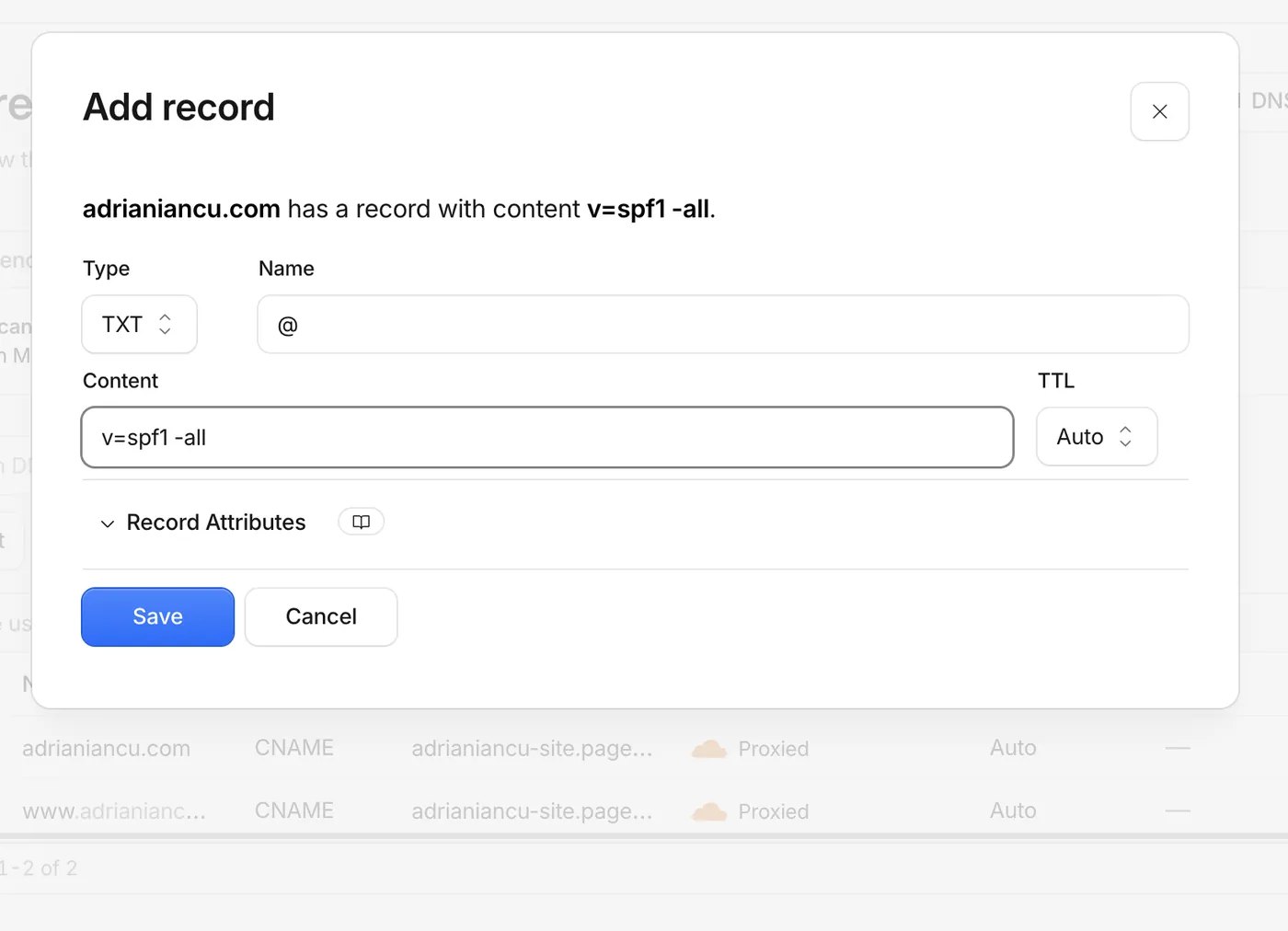
These two records fit a domain that sends no email. Your domain sends email through Google Workspace or another provider? Use the SPF value your provider gives you instead of the first record.
Final check and launch
Step 15: Check the live site
To check the live site, Claude Code tests every old URL, the redirects, the 404 page, the certificate and the email records from outside.
Claude does this
Check my live site at https://<your-domain.com>:
1. Every old URL returns the page (status 200).
2. http redirects to https, and www redirects to the main address with a 301.
3. A page that does not exist returns a 404.
4. The padlock certificate is valid.
5. The SPF and DMARC records are visible from outside.
Show me the results as a list with numbers.
My result: 16 of 16 old URLs live, https and www redirects working, a real 404, a valid certificate, and both email records visible.
Using Cowork instead of Claude Code?
Using Cowork instead of Claude Code is possible for part of this process, but I have not tested the full route yet.
Not yet tested. Cowork is the agent inside the Claude desktop app. According to Anthropic's Cowork guide, it works in folders you connect and runs commands in its own sandbox, with internet access set by your network settings. The planning and content steps fit Cowork well. Installing Astro, building the site and saving to GitHub depend on those settings. Cloudflare Pages also offers a Drag and drop your files option that skips GitHub, at the cost of automatic publishing. This section gets updated after I test the full route in Cowork.
After launch
After launch, 4 tasks remain on my list. This guide does not cover them yet:
- Submit the sitemap in Google Search Console.
- Forward an email address on the domain to your inbox with Cloudflare Email Routing.
- Connect the contact form to a form service.
- Add a privacy page, since analytics and forms collect personal data.
Questions people ask about migrating to Astro
Is Cloudflare Pages really free?
Yes, Cloudflare Pages is free for sites like this one. The free plan allows 20,000 files per site, 500 builds a month and 25 MB per file, according to Cloudflare’s limits page. A site of a few thousand pages fits comfortably.
Will I lose my Google rankings when I migrate to Astro?
Rankings stay safest when every URL stays exactly the same, with the same titles and descriptions. That is why Step 1 lists every URL and Step 7 checks every page. A page that moves needs a permanent 301 redirect from the old address.
Is Astro good for SEO?
Astro is good for SEO because it publishes finished HTML pages by default, which load fast and are easy for search engines and AI assistants to read. You also control every title, description and piece of structured data yourself.
Do I need to know how to code?
No, you do not need to know how to code to migrate to Astro this way. Claude Code writes and checks the code, and you paste prompts, read the results and click through dashboards. Knowing what each step does, which this guide explains, is enough.
How much does it cost to run?
My running cost is 0 EUR a month for hosting, plus the yearly domain renewal. The Claude plan is the only subscription involved, and I use it for much more than this site.